Importing a spreadsheet
Mapping columns, what happens to duplicates, and how to check the result before it’s written.
Quick answers
10 questions · click to openWill importing the same list twice create duplicates?
Not for anyone with an email address — rows are matched on email and a matched row updates that person. If your list has people without an email, tick Also match on mobile number on the review screen so those rows can be matched too.
How do I match people who have no email address?
Tick Also match on mobile number on the review screen. It is off by default. Rows with no email, or an email Cobber does not recognise, are then matched on the mobile number you mapped.
What happens when two people share a mobile number?
Nothing is merged. If a number belongs to more than one person, or appears on more than one row of your file, Cobber imports the row as a new person and lists it in the report so you can check it by hand. A couple sharing a handset stay two people.
Why did two rows become one person?
They shared an email address. One person is created per address, not per row, so a couple on a shared household address end up as one record. The rows that were folded in are listed in the report.
What if a column doesn’t fit any Cobber field?
Point it at a custom field. The destination list has a Custom field option alongside the standard ones, and anything you genuinely don’t want is set to Don’t import.
Can I import donations and memberships, not just people?
Yes. People, Donations and Memberships are separate import types, chosen on the first screen under What are you importing?
How does a donations import find the right person?
Email first, then mobile, then first and last name together — but only when exactly one person in Cobber has that name. Map the columns under Match to a person on the map step. If no one matches, you can skip the row or create a basic person from the name on the review screen.
What happens to rows with errors?
They’re reported rather than silently dropped, and the rest of the file still imports. The result screen lists the rows that failed and why.
Can I tag everyone in one import?
Yes. The review screen has an option to tag everyone in the import, which is the easiest way to find the batch again afterwards.
Does the import run while I wait?
No. It runs in the background, so you can close the tab. The import appears under Recent imports with its progress.
The import wizard is four steps: choose the file, map the columns, review, and commit. Nothing’s written to your database until that last one, so you can back out at any point.
Before you start
Get the spreadsheet into one row per person, with a header row. Cobber reads the headers to suggest a mapping, so headers that say what they mean save you the most time.
Import a small slice first. Take twenty rows into a copy of your file and import those. You’ll learn more about your data in ten minutes than from any amount of staring at the spreadsheet.
-
Choose what you’re importing
Go to Data Imports. The first screen asks What are you importing? with three choices — People, Donations and Memberships. Pick one, then Choose a file.
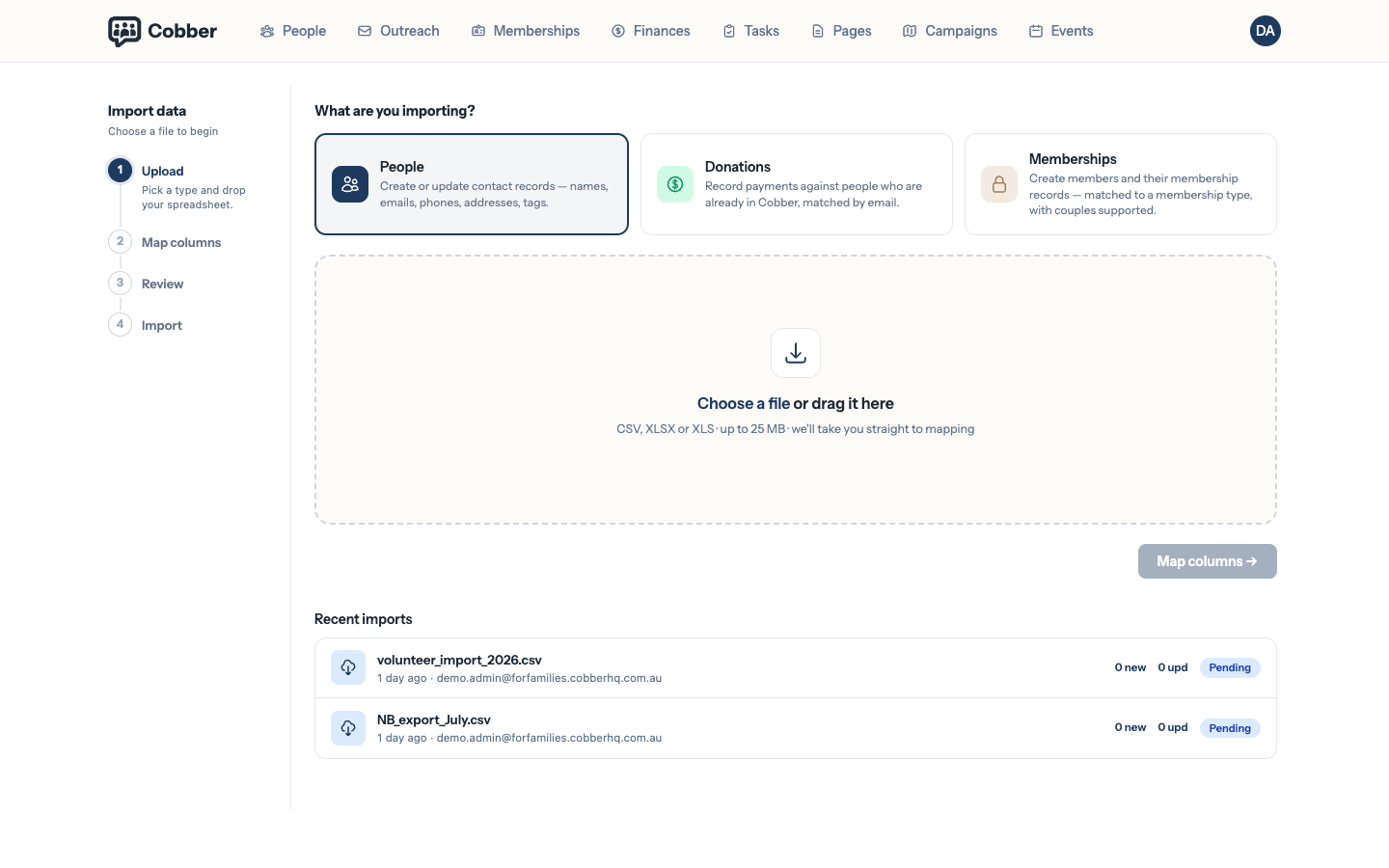
Choosing an import type and a file. -
Map your columns
Each column in your file gets a destination. Cobber pre-selects the obvious matches from your header row; you correct the rest. Anything you don’t want is set to Don’t import, and anything Cobber has no home for can go to a Custom field.
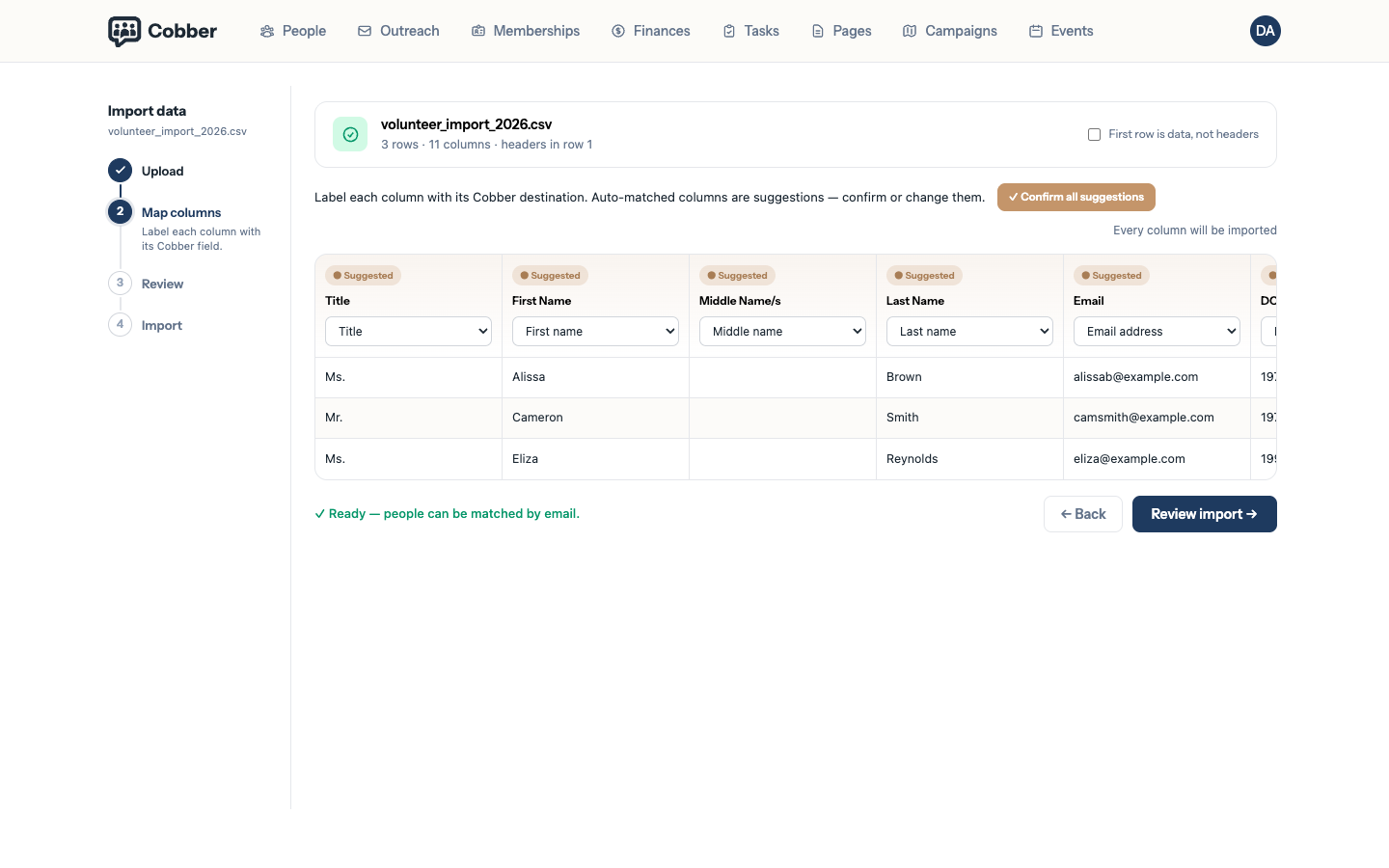
The column mapping screen, with destinations for each column. -
Review before committing
The review screen shows a Row preview and the Outcome for each row, so you can see what will be created and what will be updated. This is also where you can Tag everyone in this import — worth doing, because it gives you a way to find exactly this batch later.
-
Commit, then check the result
The import runs in the background, so you can close the tab. It appears under Recent imports, and the result screen reports Import complete or Import failed along with the counts and any rows that could not be processed.
Donations imports
A donations import attaches each row to someone who is already in Cobber (or creates a bare person if you allow it on the review screen). Matching runs in order:
- Email address you mapped as Match by email.
- Mobile number you mapped as Match by mobile (compared in normalised form, like people imports).
- First and last name together — only when exactly one kept person has that name. If two people share it, the row is treated as unmatched rather than guessing.
You still need a Donation amount column. First and last name can also be used to create a new person when nothing matches.
If you map Payment method, each non-empty value must be one Cobber recognises — for example cash, cheque, other, bank transfer (or EFT), or card / stripe for card payments. Unrecognised values are reported on the review screen and that row is not imported. Leave the cell blank if you do not know the method. If you do not map the column at all, the donation is imported without a payment method.
On the review screen, rows that do not match anyone are listed under Show … rows with no matching person, with a Reason column (duplicate name, email not found, mobile format, and so on) so you can fix the spreadsheet or add people in Cobber before you record the donations. The same rows and reasons are included if you download the CSV from the row preview.
How Cobber decides a row is someone you already have
Matching runs in two passes:
- Email address. Any of the person’s email addresses, not just their primary one.
- Mobile number. Only if you tick Also match on mobile number, and only for rows with no email match.
If neither matches, the row becomes a new person. This is why importing the same file twice is safe, and why a file with no email or mobile columns will create duplicates every time you run it.
Matching on mobile number
Also match on mobile number sits on the review screen and is off by default, so nothing changes on an existing import unless you turn it on. Tick it when your list has people without an email address — typically a paper form, a doorknock sheet, or a second list you are layering over one you have already imported. Ticking it re-runs the check and updates the figures, so you can see the effect before committing.
Numbers are compared in a normalised form. 0412 345 678, 412345678 (the
leading zero a spreadsheet drops) and +61 412 345 678 are all treated as the
same number, so formatting differences don’t matter.
The review screen then shows the split — how many rows matched on email and how many on mobile.
When a number belongs to more than one person
Cobber will not merge on a shared number. If a mobile belongs to more than one person you already have, or appears on more than one row of the file you are importing, that row is imported as a new person and listed in the report instead. Couples on one handset, an office line, and a landline typed into the mobile column all land here.
That is deliberate: a duplicate is easy to merge afterwards with Merging duplicates, whereas two people wrongly combined into one is not easy to pull apart.
When two rows share an email address
An email address identifies one person in Cobber, so if the same address appears on two rows, they become one person rather than two — the second row updates the person the first one created. Unlike a shared mobile, this cannot be turned off.
A couple on a shared household address is the usual cause, so if that pattern is common in your list, check the report before you rely on the counts. Give each person their own address, or leave the email column blank for one of them and match on mobile instead.
The report
Whenever a row needs a human eye, Review offers Download rows needing attention (CSV), and the result screen offers the same after the import has run. The report lists rows that failed, rows imported as new because a mobile was shared, and rows merged into an earlier row — each with a plain-English note saying what happened.
It carries every column from your original file alongside that note, so you can fix the rows in the report itself and upload it as a new import, rather than hunting for them in the source spreadsheet.
| Symptom | Cause and fix |
|---|---|
| The import created duplicates | Your file probably has no email or mobile column, so nothing could be matched on. Clean up with Merging duplicates, then add an identifying column before importing again. |
| A column ended up in the wrong place | The mapping was wrong on the map step. Fix the mapping and re-import the same file — matched rows update rather than duplicate, so a corrected re-run repairs the damage. |
| Some rows failed | The result screen lists them with a reason. The most common causes are a missing name and a malformed date. |
| The file was recognised as a NationBuilder export | That’s deliberate — the headers matched NationBuilder’s. See Moving from NationBuilder; the mapping is locked because that engine is purpose-built. |