Receipts and refunds
What a donor gets automatically, how to send a receipt for a recorded payment, how to fix or delete one you recorded by mistake, and how to refund without breaking your reporting.
Quick answers
12 questions · click to openDo donors get a receipt automatically?
Yes, for online donations — a receipt goes out when the gift succeeds, as long as Donation Email Receipts is on in the donation page's Receipts tab. For a payment you record by hand (cash, cheque, bank transfer), Email receipt to donor is ticked by default on the Record a payment form, so a receipt goes out then too unless you untick it.
Can I change what the receipt email says?
Yes. Your organisation's donation receipt email is in Settings → Payments, and it goes out for every donation — online, membership and recorded by hand. A donation page can use its own email instead: turn on Use a custom receipt email for this page in its Receipts tab. The attached PDF (legal name, ABN, line description) is configured separately — see below.
Can our bank transfer receipts say the same thing as our donation page?
Yes, and by default they do. Recorded donations use your organisation's donation receipt email from Settings → Payments, which is the same email your donation pages send unless a page has its own. If a page has its own wording you want everywhere, put that wording in Settings → Payments.
Can one appeal have a different receipt from the rest?
Yes. Open that donation page, go to the Receipts tab and turn on Use a custom receipt email for this page. Only donations through that page get it; everything else keeps the organisation's email.
How do I send a receipt for a cash or bank transfer donation?
When you Record a payment, leave Email receipt to donor ticked. If the person already has an email, that address is used. If they do not, you can type one in — it is saved on their record. Open an existing payment and use Send receipt to send or resend later.
Can I refund from inside Cobber?
Yes. Open the payment and use Confirm refund. It processes through Stripe, so you do not need to go there separately.
What happens to the record after a refund?
The payment stays on the person with a status of refunded, along with when and why. Nothing is deleted, so your history stays honest.
Does a refund change our totals?
Yes, and it should. A refunded payment drops out of every total that counts successful payments, including campaign revenue, so your reporting reflects money you actually kept.
Can I refund part of a donation?
A refund is actioned against the payment as a whole from the payments screen. For anything more complicated, handle it in Stripe and note it against the payment.
Can I edit a payment I recorded by hand?
Yes. Open the payment and use Edit payment to change the person, amount, date received, type, method, description or note. As soon as you change something, Email an updated receipt to donor appears, ticked — untick it to save without emailing. If a receipt already went out and you change the person, Cobber warns you and asks you to confirm. The previous person's activity timeline records that the payment was reassigned, and to whom.
Can I delete a payment I recorded by mistake?
Yes, for payments you recorded by hand. Open the payment, use Delete payment and give a reason. It drops out of every total but stays in Finances with a status of Deleted, along with who deleted it, when and why. It cannot be undone. Online (Stripe) payments cannot be deleted — refund them instead.
Someone wants a receipt again.
Open their payment and use Send receipt. You can also Download receipt for the PDF. Do not take a second donation to trigger one.
Receipts go out on their own; refunds need a person. Both leave a trail, which is the point.
What the donor receives
Every donation gets your organisation’s donation receipt email, with a PDF receipt attached (amount, date, transaction ID, payment method, tax notice). The PDF uses an invoice-style layout: your legal name, ABN and postal address from Settings → Organisation, plus a line item description on each donation page’s Receipts tab (default “Donation”). Event ticket PDFs use the same header fields. That covers gifts through any donation page, membership donations, and cash, cheque or bank transfer donations you record — when Email receipt to donor is ticked, which it is by default. The one exception is a donation page that has its own receipt email (see below).
If your organisation is set up as tax deductible, that setting carries through to the receipt — check your own status rather than assuming. Tick Tax deductible on the Record a payment form when that applies to the gift you are logging.
Editing your donation receipt email
Go to Settings → Payments and find Donation receipt email. Edit opens the whole email, not just an intro line: subject, greeting, body, closing and footer. Preview shows it with sample details, Send test emails it to you, and Reset to default puts back Cobber’s stock wording. Write it the way you would thank someone, because that is what it is — for a lot of donors it is the only thing you will send them that month.
The same section lists any donation pages that use their own email, so you can see where your wording does not apply.
Giving one donation page its own receipt
For an appeal or campaign that needs its own thank-you, open the donation page, go to the Receipts tab and turn on Use a custom receipt email for this page. The editor starts from your organisation’s email; change what you need and save the page. Leave the subject blank to keep using the organisation’s subject.
Only donations made through that page get its email — including if you resend one of them from Finances. Turn the setting off and the page goes back to the organisation’s email; its own wording is kept, so turning it back on restores it.
What you cannot edit in the email is the receipt details block — amount, date, transaction ID — which appears as a locked placeholder in the editor. That is deliberate: the thank-you wording is yours; the facts are fixed.
The PDF attachment is separate from the email body. Set Legal name and ABN under Settings → Organisation (with your postal address). On a donation page, open Receipts and set Line item description when the default “Donation” is not enough — for example a building fund — so the PDF reads “Donation to [legal name] - Building Fund”.
Under Settings → Organisation or Settings → Payments, edit Tax-deductible donation receipt notice when the payment is marked Tax deductible. The same wording appears in the receipt email and the PDF attachment. The field shows Cobber’s default until you change it; non-deductible donations keep their existing wording.
Receipts are email, so they depend on your sending domain being verified. An unverified domain means no receipts, which is the sort of thing you find out from an annoyed donor.
Sending or resending from the payment
Open the payment and use Send receipt. You will be asked to confirm before it goes out — the same prompt whether this is the first send or a resend. A donation gets the donation receipt email described above. An event ticket gets a short “Thank you for your payment” with the PDF attached; the event’s own ticket receipt goes out automatically when someone pays for an RSVP, and Send receipt from Finances does not reuse that letter. Download receipt is still there when you want the PDF yourself.
If the person has no email, Send receipt is unavailable until there is an address on their record. When you are recording the payment, you can type one in on the form — only if they do not already have an email; an existing address is used as-is.
Fixing a payment you recorded by hand
Mistakes happen when you are keying in a stack of cheques. Open the payment from Finances — payments you recorded by hand are marked Offline · manually recorded — and you will see two extra buttons.
-
Edit payment opens the same form you recorded it with. Change the person, amount, date received, type, method, description or internal note, then Save changes. The payment shows when it was edited and by whom.
As soon as you change anything, Email an updated receipt to donor appears, already ticked, so the donor gets a corrected receipt with the PDF attached. Untick it to save without emailing. If the person has no email on file you can type one in, the same as when you record a payment.
If a receipt was already emailed and you move the payment to a different person, a red warning names who received it, and Save changes asks you to confirm. The first person keeps the receipt they were sent, so let them know. Their activity timeline also records that the payment was reassigned, and to whom, so you can still see who it was originally attributed to.
-
Delete payment asks for a reason, then Confirm delete. The payment drops out of every total, the same way a refund does, but it is not erased: it stays in Finances with a status of Deleted, along with who deleted it, when and why, and an entry on the person’s timeline. You cannot undo a delete — if you deleted the wrong one, record it again.
If a receipt was already emailed, the donor still has it. Deleting the payment does not recall it, so let them know if it matters, for example for a tax deduction.
To find deleted payments later, set the Status filter on Transactions to Deleted.
Only payments you recorded by hand can be edited or deleted. A payment that came through Stripe stays as it is — refund it instead.
Refunding
-
Find the payment
Open Payments and filter down to the donation — by person, date, amount or campaign.
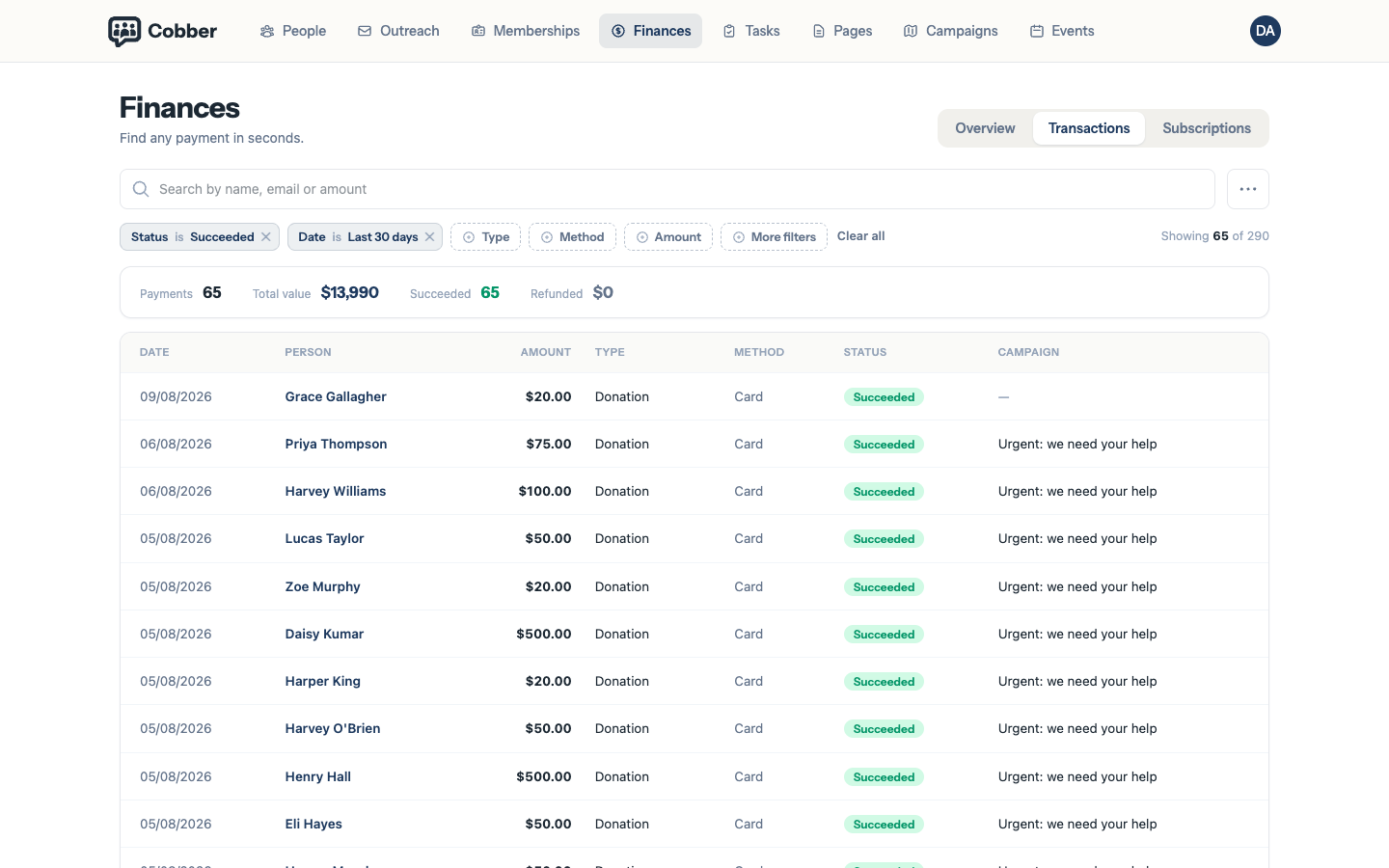
The payments screen, filtered to find a donation. -
Refund it
Confirm refund processes it through Stripe. You do not need to open Stripe separately, and you should not do both.
The receipt on the payment is always Cobber's own PDF — Finances does not link out to Stripe receipts. Use Send receipt to email it, or Download receipt for the PDF.
-
Leave a note
Use the internal note to record why. Six months later, in an audit or a conversation with a treasurer, the reason matters more than the amount.
What a refund does to your numbers
The payment moves to a status of refunded and keeps the date and reason. It then drops out of every total that counts successful payments — donation totals, campaign revenue, the lot.
That’s deliberate. Your reporting should show money you actually kept, and a refunded gift is money you didn’t. The record stays on the person so the history is still there when someone asks.
Refund in Cobber, not in Stripe. Refunding directly in Stripe moves the money but leaves the payment looking successful here, and your totals will be wrong until someone notices.